Users have the ability to open PowerShell with any Execution Policy level that they want. The idea behind the Execution Policy is to prevent unintentional execution of scripts. Your users do this by typing at a command line:
PowerShell –ExecutionPolicy PolicyLevel
The PolicyLevel is the desired Execution Policy. Through Social Engineering, an attacker could instruct a user how to execute their malicious scripts by using the above method of the Set-ExecutionPolicy cmdlet.
You can prevent this by using Group Policy. I created a GPO with the sole purpose of setting the PowerShell Execution Policy to AllSigned. This setting is located at Computer Configuration \ Policies \ Administrative Templates \ Windows Components \ Windows PowerShell \ Turn on Script Execution.
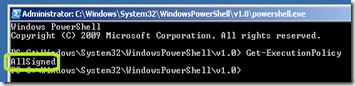
I applied the policy and verified that the client’s default execution policy was set to AllSigned by opening PowerShell using the GUI.
![image_thumb[2]](https://blogger.googleusercontent.com/img/b/R29vZ2xl/AVvXsEhwM2UCCNeqAwxxt3cPDmCiXkTvad33uGcOw359LiuUvbmgrxiqkfOpuyVi97AJWX2vZWdReK1hXx8Gh3f13Q88q7SRSNuanizJbQMURYlFifk17l2kUN2UF-L-8CUiH7uQJ_F4-HTmtLk//?imgmax=800 "image_thumb[2]")
I then closed PowerShell and then opened it again. This time by using the following command line:
PowerShell –ExecutionPolicy Unrestricted
I was able to confirm that my Group Policy prevented my user from changing the Execution Policy.
When I used the Set-ExecutionPolicy Unrestricted command and also confirmed the change, I received this error.

I also confirmed that my Execution Policy was still set to AllSigned.
PowerShell –ExecutionPolicy PolicyLevel
The PolicyLevel is the desired Execution Policy. Through Social Engineering, an attacker could instruct a user how to execute their malicious scripts by using the above method of the Set-ExecutionPolicy cmdlet.
You can prevent this by using Group Policy. I created a GPO with the sole purpose of setting the PowerShell Execution Policy to AllSigned. This setting is located at Computer Configuration \ Policies \ Administrative Templates \ Windows Components \ Windows PowerShell \ Turn on Script Execution.
I applied the policy and verified that the client’s default execution policy was set to AllSigned by opening PowerShell using the GUI.
![image_thumb[2]](https://blogger.googleusercontent.com/img/b/R29vZ2xl/AVvXsEgUiCrKXuzwAIz_r6jstwtr1HpHlm0K6fHh8-RL3r9UNLN06tVdksQT4dA_lZFudMJc372LoIQm6K3kasWIAAFTtvxiB-8wYzvKfTgNzw2R0Ln4YQpCV42mgwtUwhC3-0vBlSSJj5dB3l8/s1600-h/image_thumb%5B2%5D%5B2%5D.png "image_thumb[2]")
I then closed PowerShell and then opened it again. This time by using the following command line:
PowerShell –ExecutionPolicy Unrestricted

I was able to confirm that my Group Policy prevented my user from changing the Execution Policy.
When I used the Set-ExecutionPolicy Unrestricted command and also confirmed the change, I received this error.

I also confirmed that my Execution Policy was still set to AllSigned.
Comments