
Remove Adobe Flash Player Cookies

Here is a new worry for you and your users.  Adobe Flash creates cookies that are deleted through traditional methods.  In researching this tasty little dessert, I found reports that suggest that these super cookies can be use to restore traditional cookies that you deleted.  Other reports suggest that half of the internet's websites use this form of cookie.  OK, so how do you get ride of them?
Open the link below in a new browser:
http://www.macromedia.com/support/documentation/en/flashplayer/help/settings_manager07.html
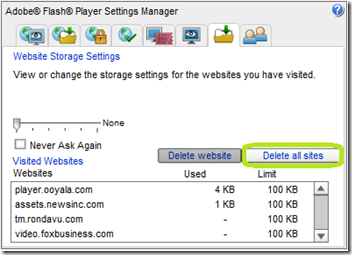
image

Click Delete all sites.

Next click the tab the is marked below:
image
Drag the slider bar so it says "None” and check Never Ask Again.

This will prevent new cookies from being written.

Comments

Popular posts from this blog

With the AD Recycle Bin Turned on, What Happens when you Create a User Account with a Password that does not meet the Password Policy?

This was an interesting observation from one of my Windows Server 2012 classes.  While working with the AD Recycle bin in a lab, one of my students discovered some interesting accounts that were created. When he created user accounts that did not meet password complexity requirements, an account is temporarily made and then deleted.  When a new password is provided that meets the password requirements, then a new account is made. We discovered this in two places.  First off in the Active Directory Administrative Center.  This is what caused the initial confusion.  Take a look.  This is in the Deleted Objects OU. You can see multiple deleted accounts for Test2 and one for Test3.  Test3 is a valid, functioning user account.  Using the PowerShell command Get-ADObject –IncludeDeletedObjects –Filter * –Properties ObjectSID we can see that indeed, two accounts were created, with one of them deleted. Notice the RID portion of the SID is different. ...

How to run GPResult on a remote client with PowerShell

In the past, to run the GPResult command, you would need to either physically visit this client, have the user do it, or use and RDP connection.  In all cases, this will disrupt the user.  First, you need PowerShell remoting enabled on the target machine.  You can do this via Group Policy . Open PowerShell and type this command. Invoke-Command –ScriptBlock {GPResult /r} –ComputerName <ComputerName> Replace <ComputerName> with the name of the target.  Remember, the target needs to be online and accessible to you.

Sticky Key problem between Windows Server 2012 and LogMeIn

This week I instructed my first class using Windows Server 2012 accessed via LogMeIn and discovered a Sticky Key problem every time you press the Shift key. Here is my solution to resolve this.  First off, in the Preferences of LogMeIn for the connection to the Windows Server, click General . Change the Keyboard and mouse priority to Host side user and click Apply at the bottom. On the Windows 2012 server, open the Control Panel – Ease of Access – Change how your keyboard works . Uncheck Turn on Sticky Keys . Click Set up Sticky Keys . Uncheck Turn on Sticky Keys when SHIFT is pressed five times . Click OK twice. If you are using Windows Server 2012 as a Hyper-V host, you will need to redo the Easy of Use settings on each guest operating system in order to avoid the Sticky Key Problem. Updated Information: March 20, 2013 If you continue to have problems, Uncheck Turn on Filter Keys .