
Use Group Policy to populate IE Favorites

Using Group Policy to populate the favorites in Internet Explorer allows you to make sure your users have quick access to mission critical websites.  To do this, create or use an existing GPO that is properly scoped to the users you want to publish the links to.

In Group Policy Manager right click the GPO and click Edit.

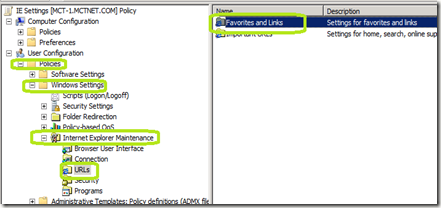
Expand User Configuration / Policies \ Windows Settings / Internet Explorer Maintenance / URLs

Double click Favorites and Links
image

Click Add URL

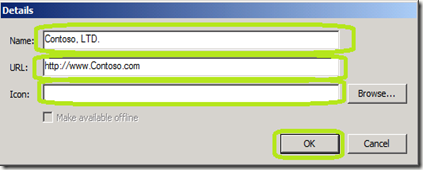
Provide a name and a URL.  You can even provide the location for a custom icon for the site.

Click OK.
image

Once you are finished, click OK in the Favorites and Links window.

Close the Group Policy Management Editor to save the policy.

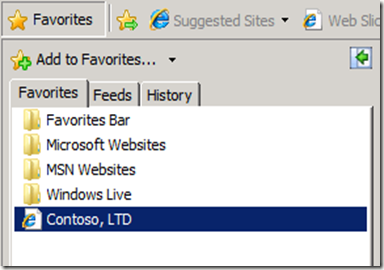
Refresh the Group Polices on a client and test.
image
Should the user delete this link, it will re-appear at the next Group Policy refresh.

Comments

Aravinda Bhat said…
Nicely explained. Thanks Jason
edanto said…
Would you recommend this approach instead of Shortcuts in GP Preferences? If so, why?

I've read a different article that recommended using GP Prefs, but unfortunately didn't explain how to do it!
edanto said…
Would you recommend this approach instead of Shortcuts in GP Preferences? If so, why?

I've read a different article that recommended using GP Prefs, but unfortunately didn't explain how to do it!
Edanto,

If you want your users to be able to modify the list, then yes, GP Prefs is the direction to go. The problem is that I have not been able to find any guidance from Microsoft on how to do this in PowerShell.

Jason
Ian Lindsay said…
I am not seeing the Internet Explorer Maintenance section in my GPOs (Running Windows Server 2012R2). Is there something I need to add, or has this option been removed?

--Ian
I see this is from Windows Server 2008. More than likely has.

Popular posts from this blog

With the AD Recycle Bin Turned on, What Happens when you Create a User Account with a Password that does not meet the Password Policy?

This was an interesting observation from one of my Windows Server 2012 classes.  While working with the AD Recycle bin in a lab, one of my students discovered some interesting accounts that were created. When he created user accounts that did not meet password complexity requirements, an account is temporarily made and then deleted.  When a new password is provided that meets the password requirements, then a new account is made. We discovered this in two places.  First off in the Active Directory Administrative Center.  This is what caused the initial confusion.  Take a look.  This is in the Deleted Objects OU. You can see multiple deleted accounts for Test2 and one for Test3.  Test3 is a valid, functioning user account.  Using the PowerShell command Get-ADObject –IncludeDeletedObjects –Filter * –Properties ObjectSID we can see that indeed, two accounts were created, with one of them deleted. Notice the RID portion of the SID is different. ...

Sticky Key problem between Windows Server 2012 and LogMeIn

This week I instructed my first class using Windows Server 2012 accessed via LogMeIn and discovered a Sticky Key problem every time you press the Shift key. Here is my solution to resolve this.  First off, in the Preferences of LogMeIn for the connection to the Windows Server, click General . Change the Keyboard and mouse priority to Host side user and click Apply at the bottom. On the Windows 2012 server, open the Control Panel – Ease of Access – Change how your keyboard works . Uncheck Turn on Sticky Keys . Click Set up Sticky Keys . Uncheck Turn on Sticky Keys when SHIFT is pressed five times . Click OK twice. If you are using Windows Server 2012 as a Hyper-V host, you will need to redo the Easy of Use settings on each guest operating system in order to avoid the Sticky Key Problem. Updated Information: March 20, 2013 If you continue to have problems, Uncheck Turn on Filter Keys .

Backup and Restore AD LDS with DSDBUTIL.exe

Active Directory Lightweight Directory Services allow you to create a directory service that allows applications to have access to user accounts, groups, and authentication similar to Active Directory Domain Services.  The big advantage here is that the schema of the directory service will not be bound by the rules of an Active Directory database.  Exchange 2007/2010, for example, use an instance of AD LDS on the Edge Transport Server to provide for user authentication from the internet.  Because your Active Directory database is not exposed to the internet, this is more secure. Applications will handle most of the dirty work should they require AD LDS.  You may want to make sure the database is being backed up and also have a restore plan in place.  Should the database become corrupt, the application that uses that database will fail.  This document will walk you through backing up and restoring an instance of AD LDS using the dsdbutil.exe command. Fi...