
Does Windows Server 2008 R2 allow you to rejoin a disjoin client to the domain with the same SID?

To test this theory, I created a Snapshot in Hyper-V of a Windows 7 Client. Once I completed this I had Active Directory reset the password to the client. Next I applied the snapshot that I just took to create a disjointed account.

When an attempt to log in is made, this is the error:
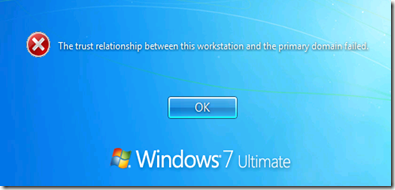
image

The question from class is if I put this client in a workgroup, and then back in a domain, will it have the same SID?

First off, I went into Active Directory and recorded the SID for the clients computer object.
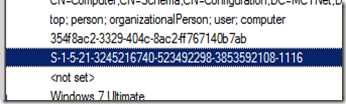
image

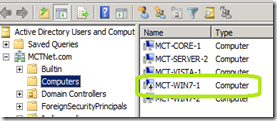
Next I logged in as the local administrator on the client and first put the client in a workgroup, and then back in the domain.  One thing that I did notice during this process.  Even though the computer could not create a secure channel to the domain controller, when I took it off the network, the computers object was disabled.
image

Once the client was joined to the network, its account re-enabled.
Also, the SID was reused.

image

On a side note.  This client was used previously to test the ability for a standard user to add a client to the domain without Domain Administrator credentials.  In that process, the users SID was recorded in the computer objects ms-DS-CreatorSID.  Even thought I rejoined the client to the network using a Domain Admin account, the original user who added this client to the domain still has their SID listed in the ms-DS-CreatorSID attribute of the clients account.

Comments

Anonymous said…
Hi, Did you try deleting the machine account after you removed the computer from the Domain and before rejoining it back to the Domain?
If you delete the computer object from Active Directory and then rejoin the client, you will get a new SID. However, if you first restore the object from the Active Directory Recycle Bin first, and then join the client back into the domain, the original properties of that object, including the SID, will be retained.

Popular posts from this blog

Sticky Key problem between Windows Server 2012 and LogMeIn

This week I instructed my first class using Windows Server 2012 accessed via LogMeIn and discovered a Sticky Key problem every time you press the Shift key. Here is my solution to resolve this.  First off, in the Preferences of LogMeIn for the connection to the Windows Server, click General . Change the Keyboard and mouse priority to Host side user and click Apply at the bottom. On the Windows 2012 server, open the Control Panel – Ease of Access – Change how your keyboard works . Uncheck Turn on Sticky Keys . Click Set up Sticky Keys . Uncheck Turn on Sticky Keys when SHIFT is pressed five times . Click OK twice. If you are using Windows Server 2012 as a Hyper-V host, you will need to redo the Easy of Use settings on each guest operating system in order to avoid the Sticky Key Problem. Updated Information: March 20, 2013 If you continue to have problems, Uncheck Turn on Filter Keys .

With the AD Recycle Bin Turned on, What Happens when you Create a User Account with a Password that does not meet the Password Policy?

This was an interesting observation from one of my Windows Server 2012 classes.  While working with the AD Recycle bin in a lab, one of my students discovered some interesting accounts that were created. When he created user accounts that did not meet password complexity requirements, an account is temporarily made and then deleted.  When a new password is provided that meets the password requirements, then a new account is made. We discovered this in two places.  First off in the Active Directory Administrative Center.  This is what caused the initial confusion.  Take a look.  This is in the Deleted Objects OU. You can see multiple deleted accounts for Test2 and one for Test3.  Test3 is a valid, functioning user account.  Using the PowerShell command Get-ADObject –IncludeDeletedObjects –Filter * –Properties ObjectSID we can see that indeed, two accounts were created, with one of them deleted. Notice the RID portion of the SID is different. ...

Where did a User’s Account Get Locked Out?

Updated: May 15, 2015 When this article was originally published, two extra carriage returns were add causing the code to malfunction.  The code below is correct.   My client for this week’s PowerShell class had a really interesting question. They needed to know where an account is being locked out at. OK, interesting. Apparently users hop around clients and forget to log off, leading to eventual lock out of their accounts. The accounts can be unlocked, but are then relocked after Active Directory replication. This problem is solved in two parts. The first one is to modify the event auditing on the network. The second part is resolved with PowerShell. The first part involves creating a group policy that will encompass your Domain Controllers. In this GPO, make these changes. Expand Computer Configuration \ Policies \ Windows Settings \ Security Settings \ Advanced Audit Policy Configuration \ Audit Policies \ Account Management Double click User Account Management C...