Application encountered an error when starting a VM in Hyper-V

If you recently made a change to the Boot Configuration Data store, you may see this error when starting a VM in Hyper-V
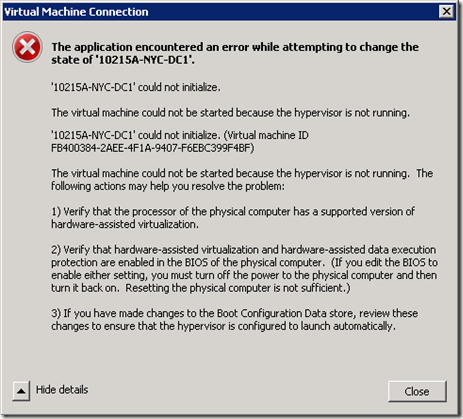
image

First, verify that virtualization support is turned on in your BIOS.  If it is and a power cycle of the server does not resolve the problem, you may not have the Hypervisor loading during the boot sequence.  To check for this problem, open a command prompt with administrative privileges.

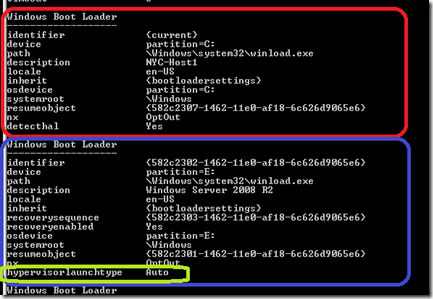
Type bcdedit and press Enter

image

Tyhe output in red is the currently loaded boot configuration The output in blue is a boot configuration that will allow Hyper-V to run. Notice the data in green is missing from the current boot configuration.

Type bcdedit /set {current} hypervisorlaunchtype auto and press Enter.  You should get a response The operation completed successfully.

Type bcdedit to see the new results.
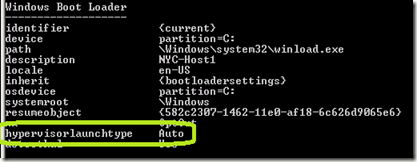
image

Now, restart the server and give it a try.

Comments

Popular posts from this blog

How to run GPResult on a remote client with PowerShell

In the past, to run the GPResult command, you would need to either physically visit this client, have the user do it, or use and RDP connection.  In all cases, this will disrupt the user.  First, you need PowerShell remoting enabled on the target machine.  You can do this via Group Policy . Open PowerShell and type this command. Invoke-Command –ScriptBlock {GPResult /r} –ComputerName <ComputerName> Replace <ComputerName> with the name of the target.  Remember, the target needs to be online and accessible to you.

Set up your Environment to utilize Invoke-GPUpdate

I’m sitting in O’Hare enjoying my 3 hour layover as I get ready to teach a Windows 10 class in Fort Wayne.  I’m actually prepping for my class in Fort Wayne in a few weeks, 10982 Supporting and Troubleshooting Windows 10.  This class is very much like the Windows 7 version that I used to teach so I decided to up the detail quite a bit.  In the GPO troubleshootin chapter, I’m including a demonstration on how to use PowerShell’s Invoke-GPUpdate.  I needed to make sure the environment is set up for me to be able to utilize this cmdlet.  If you read the Notes section on Invoke-GPUpdate’s help file, you will see there are three firwall rules that need to be in place:          Remote Scheduled Tasks Management (RPC)          Remote Scheduled Tasks Management (RPC-ERMAP)          Windows Management Instrumentation (WMI-IN) I decided to create a little PowerShell script to crea...

Sticky Key problem between Windows Server 2012 and LogMeIn

This week I instructed my first class using Windows Server 2012 accessed via LogMeIn and discovered a Sticky Key problem every time you press the Shift key. Here is my solution to resolve this.  First off, in the Preferences of LogMeIn for the connection to the Windows Server, click General . Change the Keyboard and mouse priority to Host side user and click Apply at the bottom. On the Windows 2012 server, open the Control Panel – Ease of Access – Change how your keyboard works . Uncheck Turn on Sticky Keys . Click Set up Sticky Keys . Uncheck Turn on Sticky Keys when SHIFT is pressed five times . Click OK twice. If you are using Windows Server 2012 as a Hyper-V host, you will need to redo the Easy of Use settings on each guest operating system in order to avoid the Sticky Key Problem. Updated Information: March 20, 2013 If you continue to have problems, Uncheck Turn on Filter Keys .