Once you have your shared folders correctly configured, you can use Group Policy Preferences to configure the drive mappings on your clients. This is a nice improvement from the days of using VBScript to map drives on your clients and it also saves us a lot of time in customizing the drive mappings.
In your Group Policy Management Console, either use an existing GPO, or create a new one. In this case, I created a GPO called DriveMappings.
Expand User Configuration \ Preferences \ Drive Maps
Right click Drive Maps and select New \ Mapped Drive
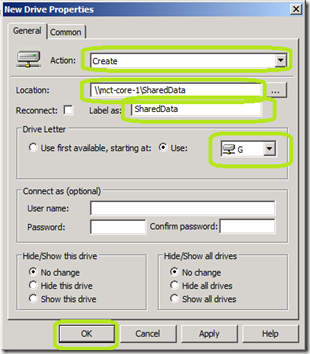
In the New Drive Properties window, fill in the information below
In the Action: field, select Create
In the Location field, select the UNC path to your share.
In the Label as: field, provide a name.
In the Drive Letter: area, choose what is appropriate
Click OK.
If you want to designate a mapped drive for different users, you can use security groups to determine which users get which location mapped to them. That way Drive G will point to one location for one set of users and drive G will point to another location for other users.
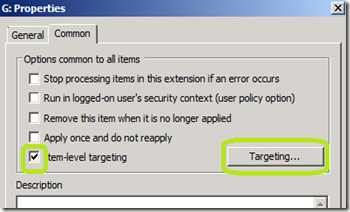
In the New Drive Properties window, click the Common tab.
Check the Item-level targeting check box and click the Targeting… button.
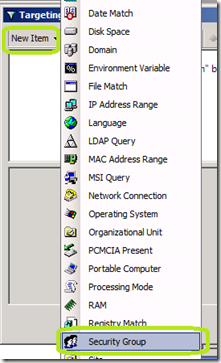
Click New Item.
From the drop down box, select Security Group.
To the right of the Group field, click the Button.
Add in the security group that you want this drive mapping to apply to and click OK.
If you are concern about conflicts with other security groups that a user may be a member of, you can check the Primary Group check box.
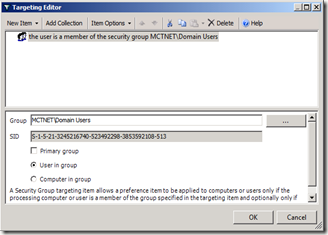
That will set this preference to only process if the specified group is the users primary group. To set a group as a primary group for a user, open that users object in Active Directory Users and Computers.
Click the Member Of tab.
Click the group that you want to make as the primary group for that user.
Click the Set Primary Group Button.

In your Group Policy Management Console, either use an existing GPO, or create a new one. In this case, I created a GPO called DriveMappings.
Expand User Configuration \ Preferences \ Drive Maps
Right click Drive Maps and select New \ Mapped Drive

In the New Drive Properties window, fill in the information below
In the Action: field, select Create
In the Location field, select the UNC path to your share.
In the Label as: field, provide a name.
In the Drive Letter: area, choose what is appropriate
Click OK.

If you want to designate a mapped drive for different users, you can use security groups to determine which users get which location mapped to them. That way Drive G will point to one location for one set of users and drive G will point to another location for other users.
In the New Drive Properties window, click the Common tab.
Check the Item-level targeting check box and click the Targeting… button.

Click New Item.
From the drop down box, select Security Group.

To the right of the Group field, click the
 Button.
Add in the security group that you want this drive mapping to apply to and click OK.
If you are concern about conflicts with other security groups that a user may be a member of, you can check the Primary Group check box.

That will set this preference to only process if the specified group is the users primary group. To set a group as a primary group for a user, open that users object in Active Directory Users and Computers.
Click the Member Of tab.
Click the group that you want to make as the primary group for that user.
Click the Set Primary Group Button.

Comments
I have tried to do the same steps with Organization Unit instead of group, but the user can’t see the drive in the computer.
Is it because of the Organization Unit?
Thank you.