
How to use AD Schema snap-in to manage an AD LDS Schema

You will need to be logged in as an administrator (or elevate your privilege level) to complete this task.
First you need to register your Schema snap in before we can use it.

Click Start. Type cmd and press Enter.

Type regsvr32 schmmgmt.dll and press Enter.

Click OK when prompted.
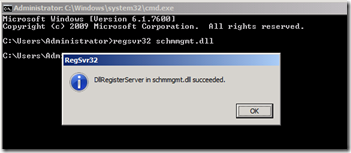
image

Type Exit and press Enter.

Click Start, type MMC and press Enter.

Click File and then click Add\Remove Snap-ins

Click Active Directory Schema and then click Add

Click OK
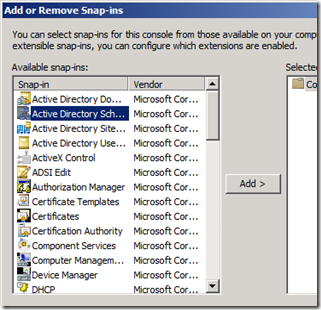
image

Right click Active Directory Schema and then click Change Active Directory Domain Controller…
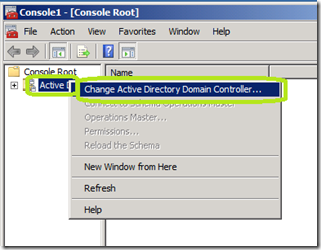
image

Click Type a Directory Server name[:port]here;


Type the DNS name, NetBIOS name, or IP address of the server hosting the AD LDS instance.  In this example, the server name is MCT-1.
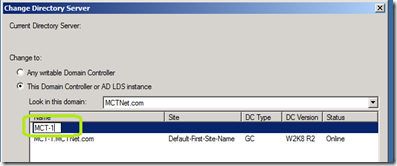
image

Now click on the enter you just made in the Change Directory Server window and then click OK.

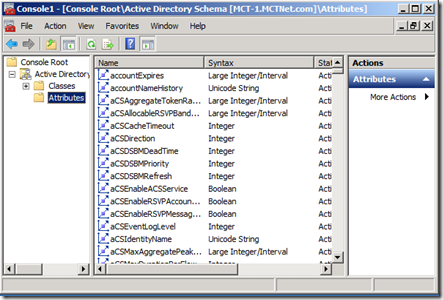
You can now view the classes and attributes of your AD LDS instance.
image

Comments

Popular posts from this blog

Sticky Key problem between Windows Server 2012 and LogMeIn

This week I instructed my first class using Windows Server 2012 accessed via LogMeIn and discovered a Sticky Key problem every time you press the Shift key. Here is my solution to resolve this.  First off, in the Preferences of LogMeIn for the connection to the Windows Server, click General . Change the Keyboard and mouse priority to Host side user and click Apply at the bottom. On the Windows 2012 server, open the Control Panel – Ease of Access – Change how your keyboard works . Uncheck Turn on Sticky Keys . Click Set up Sticky Keys . Uncheck Turn on Sticky Keys when SHIFT is pressed five times . Click OK twice. If you are using Windows Server 2012 as a Hyper-V host, you will need to redo the Easy of Use settings on each guest operating system in order to avoid the Sticky Key Problem. Updated Information: March 20, 2013 If you continue to have problems, Uncheck Turn on Filter Keys .

Where did a User’s Account Get Locked Out?

Updated: May 15, 2015 When this article was originally published, two extra carriage returns were add causing the code to malfunction.  The code below is correct.   My client for this week’s PowerShell class had a really interesting question. They needed to know where an account is being locked out at. OK, interesting. Apparently users hop around clients and forget to log off, leading to eventual lock out of their accounts. The accounts can be unlocked, but are then relocked after Active Directory replication. This problem is solved in two parts. The first one is to modify the event auditing on the network. The second part is resolved with PowerShell. The first part involves creating a group policy that will encompass your Domain Controllers. In this GPO, make these changes. Expand Computer Configuration \ Policies \ Windows Settings \ Security Settings \ Advanced Audit Policy Configuration \ Audit Policies \ Account Management Double click User Account Management C...

How to run GPResult on a remote client with PowerShell

In the past, to run the GPResult command, you would need to either physically visit this client, have the user do it, or use and RDP connection.  In all cases, this will disrupt the user.  First, you need PowerShell remoting enabled on the target machine.  You can do this via Group Policy . Open PowerShell and type this command. Invoke-Command –ScriptBlock {GPResult /r} –ComputerName <ComputerName> Replace <ComputerName> with the name of the target.  Remember, the target needs to be online and accessible to you.