Recently I installed a couple of new servers in my test lab. They had both wired and wireless NICs installed on them. I configured the wired NIC without any issues. The wireless takes a few extra steps.
To get wireless functionality on a server, you need to enable the Wireless feature.
On your Server 2008 R2 server, open Server Manager. You can do this in your Administrative Tools or by clicking the icon in the quick launch bar .
.
Once the Server Manager has open, click Features.
With Features open, click Add Features to the right.
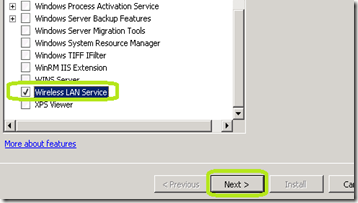
Once the Select Features window opens scroll to the bottom of the list and check that feature called Wireless LAN Service.
Click Next
Click Install.
Click Close.
Close Server Manager.
Click Start.
Right click Network and select Properties.
In the upper right corner of the Network and Sharing Center, click Change Adapter Settings.
If your wireless adapter is Disabled, right click it and select Enable.
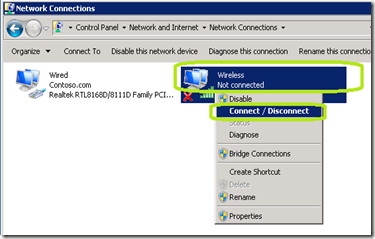
Right click your wireless adapter can click Connect/Disconnect.
Select your wireless network and continue the configuration according to the security policy of your organization.
To get wireless functionality on a server, you need to enable the Wireless feature.
On your Server 2008 R2 server, open Server Manager. You can do this in your Administrative Tools or by clicking the icon in the quick launch bar
 .
.Once the Server Manager has open, click Features.
With Features open, click Add Features to the right.
Once the Select Features window opens scroll to the bottom of the list and check that feature called Wireless LAN Service.
Click Next

Click Install.
Click Close.
Close Server Manager.
Click Start.
Right click Network and select Properties.
In the upper right corner of the Network and Sharing Center, click Change Adapter Settings.
If your wireless adapter is Disabled, right click it and select Enable.
Right click your wireless adapter can click Connect/Disconnect.

Select your wireless network and continue the configuration according to the security policy of your organization.
Comments
Sai Narayana
India
I do not have one of those in stock. You are going to need to contact the manufacture for installation instructions.