I never really understood the logic behind this one. By default, members of the Authenticated Users group can add up to 10 clients to your domain. I’ve tested this and it is true. I created a new user in my domain without given the user any special privileges and added a client to the domain without any issues. This is why it is so important to make sure you have redirected your default computer container to an OU that is heavily locked down.
Another avenue to think about is if you are deploying software by user account. The user will be able to steal company software. Also, any malware on this rogue client will now be on your network.
To change the default computer container that new computer objects will be placed, log into your Domain Controller and type this:
Redircmp container-dn contain-dc
For example
redircmp OU=MyComputers,DC=Contoso,DC=com
The burning question here is how to stop this from happening. On your Windows Server 2008 Domain controller, click Start.
Type ADSI Edit and press enter.
Right click ADSI Edit and the click Connect to.
In the Connection Settings window, click OK
Expand Default naming context.
Expand the Distinguished Name of your domain.
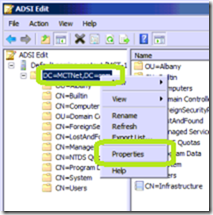
Right click the Distinguished Name of your domain and click Properties.
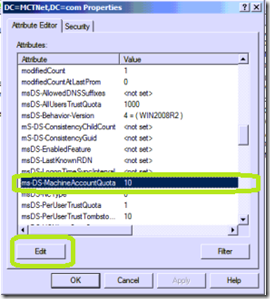
Select the property named ms-DS-MachineAccountQuota and then click Edit.
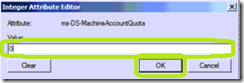
Set the value to 0 and then click OK
Your Authenticate Users can no longer attach a client to your domain.
Another avenue to think about is if you are deploying software by user account. The user will be able to steal company software. Also, any malware on this rogue client will now be on your network.
To change the default computer container that new computer objects will be placed, log into your Domain Controller and type this:
Redircmp container-dn contain-dc
For example
redircmp OU=MyComputers,DC=Contoso,DC=com
The burning question here is how to stop this from happening. On your Windows Server 2008 Domain controller, click Start.
Type ADSI Edit and press enter.
Right click ADSI Edit and the click Connect to.
In the Connection Settings window, click OK
Expand Default naming context.
Expand the Distinguished Name of your domain.
Right click the Distinguished Name of your domain and click Properties.

Select the property named ms-DS-MachineAccountQuota and then click Edit.

Set the value to 0 and then click OK

Your Authenticate Users can no longer attach a client to your domain.
Comments
Glad you found this useful. I use this issue when delivering the Microsoft Active Directory class (6425) to demonstrate how to find those who did this with PowerShell. This issue is also present on Windows Server 2012.